Tuesday, September 14, 2010

Latest News: Microsoft Launches Webcam With 1080p HD Sensor

Microsoft has launched a new webcam dubbed LifeCam Studio with a Full HD (1080p) sensor.
The LifeCam Studio features 360-degree view range, improved auto focus and Microsoft’s TrueColor and ClearFrame technologies, which keep the colors bright and the video smooth even under low-light conditions.
Microsoft’s Windows Live Messenger 2011, which is currently available in beta, supports HD video calling in 16:9 format, a feature that should go hand-in-hand with the company’s new webcam.
However, bear in mind that the video software that comes with the camera caps video chatting/recording at 720p.
LifeCam Studio will be available exclusively at Best Buy stores later this month for an estimated price of $99.95. It’s currently available for pre-order on the retailer’s website.

Nokia Launches Three New Symbian^3 Smartphones


N okia today announced three new Symbian^3 smartphones at its Nokia World event: Nokia E7, Nokia C7 and Nokia C6. These three share the OS with the upcoming Nokia N8, which (according to Nokia) is the only N-series device which will be based on Symbian^3.
The E7 is a device aimed at business users, with a full QWERTY keyboard, a 4-inch, 640×460 pixel touchscreen with Nokia’s ClearBlack technology for improved outdoor visibility and an 8-megapixel camera capable of recording 720p video. It touts 16GB of storage memory, and 350 MB of internal memory. In accordance with its business pedigree, the E7 can create PowerPoint slides on the go. It comes with a price tag of €495 ($638).
Nokia C6 has a 3.2-inch AMOLED screen (also with ClearBlack technology), while the C7 has a 3.5-inch AMOLED screen and a case consisting of stainless steel and glass. Both devices have an 8 megapixel camera with dual LED flash and the ability to record 720p video.
Nokia C6 has 340 MB of internal user memory, while Nokia C7 has up to 350 MB of internal memory and 8 GB of storage memory. The memory in both devices can be expanded with a 32 GB microSD memory card, and the price is €260 ($334) for the C6, and €335 ($430) for the C7. All three devices should become available before the end of 2010.


An Easy Way to Embed YouTube Playlists

youtube video playlist
If you are planning to embed multiple YouTube videos on a web page, you may even consider putting all these videos into a single YouTube playlist and then embed the playlist into your page. This offers two advantages:
1. You can squeeze in more video content in the same amount of (visual) space.
2. A video playlist will reduce the (byte) size of your web page considerably because, technically, you now have to embed the YouTube Flash video player only once on your page.

How to Embed YouTube Video Playlists

The default embed code for any YouTube video playlist looks something like this (remember to replace the word “ID” with the actual YouTube playlist ID) :
<object width="480" height="385"> 
<param name="movie" value="http://www.youtube.com/p/ID"></param>
<param name="allowFullScreen" value="true"></param>
<param name="allowscriptaccess" value="always"></param>
<embed src="http://www.youtube.com/p/ID" width="480" height="385"
type="application/x-shockwave-flash" allowscriptaccess="always"
allowfullscreen="true"></embed></object>
If you find the above code confusing, there a much simpler way as well.
YouTube offers an IFRAME option for embedding individual videos and the same code can be extended to embed video playlists as well.
<iframe src="http://www.youtube.com/embed/p/ID" 
width="100%" height="500" frameborder="0"></iframe>
You may have to modify the value of height and width attributes to make the video player fit your page.
What’s the advantage? The code looks clean and, going forward, Google could make these playlists HTML5 ready. Then your existing video playlist will play on browsers that don’t have the Flash plugin without you having to change the embed code.
Here’s a sample YouTube playlist embedded using the new IFRAME style.

A Guide to Choosing an Internet Based Fax Service

send fax from computerAlthough most people have switched to email, there are those rare occasions when you have to send signed documents with your written signature and a fax just seems like an appropriate solution then.
You don’t need a dedicated fax machine any more as there are quite a few good web based services, both paid and free, that let you send and receive faxes using your computer itself without requiring any extra hardware. You don’t need a “fax modem” or even your traditional landline phone to send a fax via the computer.
How Internet Faxing Works?
Most online fax services work in a similar way. They give you a dedicated fax number and any fax message that’s sent to that number is forwarded to you as an email attachment. Alternatively, if you want to send a fax from your computer to another fax machine, you can send your document as an email attachment to the online fax service who in turn will forward it to the recipient’s fax machine.
Choosing an Internet Fax Service
After researching the plans and features of about a dozen Internet based faxing services, I have shortlisted the top 5 services that have all the necessary features and are most cost-effective. They have plans for everyone from the consumer who needs to send or receive an occasional fax to the businessman who needs to send multiple faxes daily.
1. GotFreeFax.com – With Got Free Fax, you can send up to two faxes in a day for free to any number in the U.S. and Canada.
You can either use its online rich text editor to compose a fax or upload a PDF /Word file from your computer, type the recipient’s fax number and hit send. The service won’t add any advertisements or branding to your faxes. If you would like to send a fax to an international number, you can buy credits through PayPal.
2. myFax.com – My Fax allows you to send two faxes, with up to 10 pages each, per day for free. Unlike “Got Free Fax,” which only lets you send free faxes to US and Canada based numbers, My Fax supports a much large set of countries even for their free service.
MyFax offers a dedicated Fax number for an extra fee where you can receive faxes. All faxes sent to your personal fax number will arrive in your email inbox as PDFs.
3. GreenFax.com – With Green Fax you can again send and receive faxes via email. They offer a unique prepaid plan where you are only charged per page for sending faxes to US and Canada numbers without any monthly fees.
If you are sending a fax to an international number, you are billed per-minute of fax transmission time and unsuccessful transmissions are not charged.
4. eFax.com – If you need a fax number outside the USA, eFax is probably the best option for you. They offer your local fax numbers in 45 different countries for your incoming faxes. For a fixed monthly fee, you may receive up to 130 pages by fax per month while you pay a per page fee for sending faxes and this varies based on the destination.
With eFax, you may either send and receive faxes via your email program or they also offer integration with Microsoft Office programs.
5. RingCentral Fax – With RingCentral, you can send faxes worldwide through an email message, via their web interface, or from any Windows application. They charge a fixed monthly fee and their outgoing fee seems to be among the lowest in the industry.
Internet Fax Services – Plan Comparison Chart
The following chart compares in detail the pricing plans of various online fax services and also the cost of sending faxes to some popular destinations.
online fax - comparison
These rates often apply to fax pages that take less than 60 seconds to transmit. If the fax transmission is taking longer than 60 seconds, some companies may bill you on a per-minute basis instead of per page.
[*] FaxPipe and MaxEmail are two other Internet based fax services that let you send and receive faxes and they have an overall lower monthly fee but it has be paid annually.
Which is the best Internet Faxing Service for me?
It depends on your country of residence, the volume of documents that you plan to fax in a month and the location of your client (if you wish to receive incoming faxes).
For most consumers, who have to send a fax occasionally , GotFreeFax looks like a perfect service. They do not charge a monthly fee, the rates for international outgoing faxes are competitive and you can send a fax from the browser without requiring any setup.
If your clients /contacts are based outside the U.S., you can go with eFax as they will give you a local fax number in that country and your clients won’t have to dial an international number in order to send you a fax. RingCentral and myFax also offer attractive pricing plans for volume faxing.

Thursday, September 2, 2010

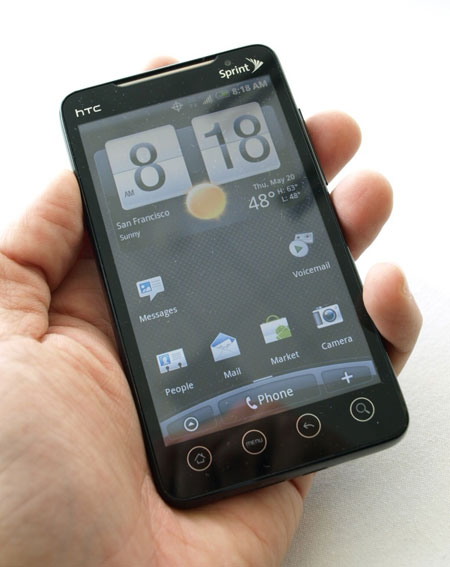
HTC EVO 4G Problems: What Users Complain about the Most

From screen separation to USB charging issues, here are the EVO 4G pitfalls users complain about most.
Looking into the HTC EVO 4G on Sprint? As the current king of the 4G hill, it has certainly earned its stars, but WiMax juggernaut has it’s shortcomings, too. Like the iPhone 4, early adopters ran into a handful of frequent problems with the EVO 4G. Here are the issues any potential buyer will want to be aware of.

Poor battery life

Sure, your shiny new EVO 4G will function as a Wi-Fi hotspot, sharing out your 4G signal to up to eight friends, but you had better find an outlet if you want to keep them happy. Although the EVO 4G has roughly the same battery capacity as most other smartphones, heavy 4G use can quickly whittle it down within just hours. It’s not a manufacturing error: Just an unfortunate consequence of pumping data way faster than your 3G peers.

USB charging issues

A small number of EVO 4G buyers report they have had issues charging their phones via the microUSB port. Some claim their phones will not charge at all, while others experience intermittent charging. The problem appears to be due to the female microUSB port working its way loose from the motherboard. HTC is aware of the problem and will exchange phones within the standard one-year warranty period.

Light leakage and glass separation

The 4.3-inch display on the EVO 4G, gorgeous as it is, has had some issues. Early adopters complained that the screens on some phones are not properly sealed, leading to light from the backlight bleeding out, and potentially in the long term, dust build up. HTC claims it has remedied issues at the factory that caused the problem.

Unresponsive touch screens

The EVO 4G uses the same capacitive technology found on devices like the iPhone and Droid, but some users complain the device can become unresponsive when it isn’t grounded (being held in the hand). Check out the demo video below.


Iomega eGo USB 3.0 Review

We review Iomega's eGo portable hard drive with USB 3.0 which boosts transfer speeds up to 10x faster than USB 2.0.

Introduction

USB 3.0 has arrived, and with it, a whole new batch of drives designed to let you push around those Excel spreadsheets, PowerPoints, and Blu-ray rips of Pulp Fiction, even faster. While most USB 3.0 drives still command a premium, Iomega will be one of the first to drop the USB 2.0 entirely and fold USB 3.0 into all of its drives – without increasing prices – later this fall. We put the new eGo through its paces to see whether the upgrade is worth the wait.

Features and Design

Iomega hasn’t bothered to give the eGo a facelift to reflect its newfound speed, but that’s quite alright with us. The eGo USB 3.0 remains one of the slimmer drives on the market at just 0.625 inches thick, and its similar shape will allow you to use it with old eGo accessories, like the carrying case. At the moment, opting for USB 3.0 will limit you to only charcoal color, but that will change in October when USB 3.0 begins migrating over to even more drives and the prices drop to current USB 2.0 levels. For the record, charcoal has a clean, professional air, and if the drive enclosures weren’t plastic, the slippery glossy layered on top could almost pass for automotive-grade clear coat.

The only real clue you’re dealing with a new drive: Where a standard mini-USB jack used to lie, you’ll now find a USB 3.0 SuperSpeed connector, a new configuration that looks a bit like a long, sideways letter B. The extra pins here translate to better performance, but conveniently, that B shape also breaks it into connector into two ports, one of which you can use with old-style microUSB cables. Obviously, you won’t reap the benefits of full USB 3.0 speed, you’ll be thankful for it when you need to pull files off in a jam.

Testing and Performance

Unless you just cracked your computer out of its foam packing a few months ago – or built it yourself with one of the few USB 3.0-capable motherboards out there – chances are, you don’t have USB 3.0 onboard. We tested with a LaCie USB 3.0 PCI Express card, but just about any USB 3.0 adapter should provide similar performance. At the moment, they all use the same NEC chips.
To provide a performance baseline, we ran the eGo through the wringer at USB 2.0 speeds. It turned in write speeds of 23.67 MB/s and read speeds of 25.86 MB/s – a marked improvement over the last USB 2.0 eGo we reviewed, but still not as fast as one of our favorite USB 2.0 drives, LaCie’s tiny Rikiki, which hit speeds of 30.45 MB/s and 29.18 MB/s, respectively.
Switch over to USB 3.0, and things heat up. While claims of performance “10 times faster than USB 2.0” are sheer marketing hype, we found that you can expect an honest doubling of speed in real-life performance. We hit average write speeds of 49.35 MB/s and read speeds of 50.0 MB/s. At that speed, an entire 4.19GB DVD rip of The Empire Strikes Back transferred to the drive in just one minute, 24.9 seconds. You could hypothetically fill the drive to its entire 500GB capacity in two hours, 49 minutes.
While USB 3.0 performance is certainly impressive, it’s worth noting that Iomega’s FireWire 800 eGo still has it beat. That model hit 57.39 MB/s write speeds and 53.93 MB/s read speeds in the same transfer tests, just barely edging out the USB 3.0 model for speed supremacy.

Conclusion

Iomega’s eGo USB 3.0 portable drive maintains the same winning look and feel as previous iterations while essentially doubling transfer speeds. The 500GB version of the drive still commands a $20 price premium over the (list price) USB 2.0 version, but the USB 3.0 version will be a no brainer when Iomega switches the rest of the eGo line to USB 3.0, without increasing price, in October.

Highs:

  • Vastly improved transfer speeds
  • Sleek, portable design
  • Affordable (more so after October price drop)
  • Backward compatible with microUSB cables

Lows:

  • Not the speediest competitor in USB 2.0 mode

Wednesday, September 1, 2010

4 Tips for Writing SEO-Friendly Blog Posts

In addition to writing for their human readers, web writers and bloggers have to consider the digital web crawlers employed by search engines like Google Your business can’t skip the task.
Since most would-be readers use search engines to find blog posts, you need to make sure that Google ranks your site highly when those readers search for terms related to your business and the content you’re writing.
You could spend thousands of dollars to have a search marketing firm optimize your business’s blog for search engines, but chances are that you can learn a lot of the fundamentals yourself, saving yourself a lot of money as long as you have the interest and the time. Here’s a basic primer on Search Engine Optimization (SEO) for your company’s blog.

1. Always Include Search Terms in Your Post’s Title


When Google reads a website to index it, it reads the code directly, not the snazzy presentation that humans see. The way most blogging platforms are built, the headline or title of your blog post is among the first things Google sees, and Google generally assumes the words that appear earliest are the most important. That’s why the title is the most important part of your blog post when it comes to SEO.
Think about who you want to reach with this blog post, and what that person might be searching for when looking for your business’s goods or services, then include critical words from that hypothetical search in the title. The most important terms should appear as quickly as you can reasonably fit them in. Just be careful not to make the title unreadable or awkward to human readers — that SEO effort will have been for naught if the reader is immediately turned off by the content once he or she finds it.
Here’s a pro tip: You’re not likely to win strong ranking for more than one or two search terms at once, so minimalism is a virtue here. Don’t get over-ambitious. Focus on one potential search term, then if you want to rank for a second term, write a separate and unique post specifically with it in mind.

2. Link Important Words to Earlier Blog Posts


Search engines generally assume that a blog post that has been linked to has more authority than one that has not. They also consider exactly what word or phrase linked to the post; a blog post about the iPhone is going to be more likely to show up in Google searches on the subject if another page links the word “iPhone” to the post.
You’ll get the most value from external links from sites that Google or other search engines already consider to be an authority of the subject (if the top blog about iPhones links the word to your post, you’ll get a huge boost), but all incoming links will still pass rank to your page, even those from elsewhere on your site.
So be sure and link important keywords to other pages or previous posts on your blog to gain some credibility and search rank. It will make a big difference. Just don’t overdo it; not only do human readers hate reading blogs so filled with links that they might accidentally click on something, Google may penalize you if you go overboard, too.

3. Hit the Tagging Sweet Spot


Most blogging platforms let you apply tags to your posts. Tags help organize your blog so both humans and search engines can find what they’re looking for. They’re terms like “consulting,” “local” or “technology” that reflect the topics and content of the post.
Google tries to recognize tags and use them to prioritize your site in its search ranking for those terms. The tags are usually links to other pages on your blog (usually a backlog of other posts with the same tag), and like we said earlier, linking search terms to other pages on your site helps too.
So by all means, add pertinent tags to your blog post, but be warned that Google and other search engines are wary of sites that try to game this system. They will penalize you in the search rankings if you use so many tags that the web indexing bots suspect you might be attempting to associate your content with unrelated topics just to score extra traffic.
The method for determining this is arcane, but a good rule of thumb from a pro blogger is that five to 10 appropriate tags are usually right in the sweet spot.

4. Use Google Insights to Find the Best Search Terms


Google Insights Image
You don’t have to play a guessing game about the best tags or search terms to link or put in your post’s title. Since Google is the most popular search engine, it makes sense to focus your efforts there. Whenever you’re not sure which terms to go with, hit up Google Insights, a web-based tool that compares the popularity of any search terms you want to know about.
For example, if your business is a coffee shop but you’re not sure whether would-be customers are more likely to search for “café” or “coffee shop,” Insights can tell you which one is more popular.
These four tips should get you on your way to having a more SEO-friendly corporate blog. Add your tips for search engine optimization in the comments below.

How to Make your Windows Start-up Faster

Slow Windows StartupDoes your Windows computer take really long to start-up?
Well, you are not alone with this problem but fortunately, with some minor tweaks, you can get your sluggish Windows to start much faster without re-installing Windows or adding any new hardware.
The logic is fairly simple. Your computer loads quite a few software programs and services during start-up (look at all the icons in your Windows System tray). If you can trim this list, your computer’s boot time will decrease.
I have been testing a free utility called Soluto and it helped reduce the start-up time of my Windows computer from 3.15 minutes to around 1.25 minutes. All this with a few easy clicks and without confusing the user with any technical jargon.
soluto boot problems
After you install Soluto, it sorts your start-up programs list into three categories:
  • No-brainer – remove these programs from start-up with giving a second thought.
  • Potentially removable – another list of start-up programs that may also be removed provided you know what these programs do.
  • Required – Certain programs and services are required to run Windows properly and therefore should not be removed.
Depending upon the software app, you may then either choose “Pause” to completely remove that app from the start-up queue or choose “Delay” when you want the app to run automatically but not immediately at start-up. Soluto will launch the “delayed” app once the boot up is over and your system is idle.
You can also hover the mouse over any program name and Soluto will display the number of seconds that the app adds to the start-up time. And don’t bother about making mistakes because Soluto has a useful “Undo all” feature that will restore the start-up list to the original state with a click.
system boot time
Once you are done classifying your start-up programs list, reboot the computer and you should notice a difference between the start-up time.
Where to download Soluto?
The official site for Soluto is soluto.com but in order to download the program, you should head over to mysoluto.com.
Alternatives to Soluto
If you are tech-savvy, you can also use a utility like Sysinternals Autoruns to manually prevent all the non-essential Windows processes and programs from running at start-up.
Just uncheck all the Autorun entries and Services that you don’t wish to load at startup and reboot your system. You’ll however need a separate program to get the “delay” feature which is so handy in Solute.
autoruns

Tuesday, August 31, 2010

Who Broke the News (or the Embargo) First?

embargos or gentleman's agreementLet’s say a company is about to launch a new product and, as is the standard practice, they have pre-briefed a select group of media outlets and bloggers about the news under an embargo.
The launch date is close and writers have already prepared their news stories so that they can push them as soon as embargo is lifted. And then something strange happens – one media outlet publishes the story ahead of time thus breaking the embargo – intentionally or unintentionally.

Find Who Broke the News Embargo?

Broken embargoes can be frustrating for journalists and bloggers as the limelight (and page views) often shifts to the news publication who did not honor the embargo.
If a news embargo gets broken, here’s a simple way that may help you determine the name of the publication that broke it in the first place.
Step 1. Go to google.com/realtime and type a few words from the story headline.
Step 2. In the timeline, click an area where you have minimal number of tweets around that story. That’s when the news first broke on the Internet and looking at the tweets, you should be able to figure who broke that news.
embargo timeline
To give you an example, Google pre-briefed a number of publication about the priority inbox feature of Gmail and the news was supposed to stay under embargo until 9 AM. eWeek however published the story  at 8:36 AM while others still had their story in the queue.
This technique works because most sites now auto-syndicate their content to social sites like Twitter and Facebook. Since all the stories are getting on Twitter, you can easily sort them by publication time through the timeline of Google Real Time search.

Poster Compares the Samsung Galaxy S Phones

Samsung Galaxy SThe Samsung Galaxy S series of Android mobile phones have been a huge success in the U.S. as well as various international markets.

Compare Samsung Galaxy S Phones

The Galaxy S phones are available though all major carriers in the U.S. though with a slightly different set of features and under different names – you get them as Epic 4G on Sprint, Samsung Vibrant on T-Mobile, Samsung Fascinate on Verizon and Captivate on AT&T.
If you are based in the U.S. and are planning to go for a Galaxy S, the following poster from BillShrink should help you narrow down your choices.
The poster compares the common features and technical specifications of the various Galaxy S phones as well as the contract plans.

Samsung Galaxy S – What’s Common

samsung galaxy phones - common features

Samsung Galaxy S – What’s Different

samsung galaxy phones - differences

Monday, August 30, 2010

How to Check the Health of your Hard Drive

Hard disk failure is possibly the worst thing that can happen to your computer and it often occurs without giving any warning signs.

Test Your Hard Drive for Impending Problems

hard diskYou may however run certain tests on your computer beforehand to get an idea about the current condition of your hard disk. This should in turn help you decide whether a replacement drive is necessary or not.

Step 1: Check your hard disk for errors

All recent versions of Windows include a utility called Chkdsk.exe that can check your hard disk for any bad sectors.
You may either run Chkdsk from the command line (see details) or launch Windows Explorer, right click the drive that you wish to examine and choose Properties. Switch to the Tools tab and click the “Check Now” button under Error checking. Select “Scan for and attempt recovery of bad sectors” to perform a thorough disk check.

Step 2: Understand the sounds of your disk

Do you sometimes hear strange sounds coming out of the CPU box? Well, if the hard drive is making those sounds, it could be an alarming situation and your best bet would be that you turn off the computer before any further damage is done to the disk.
But how do you distinguish between sounds coming from a hard disk with noise that’s made by the fans or the power supply? Here’s a useful page where you can listen to recorded sounds of various hard drives that have lead to a crash. If your disk is making a similar sound, get a replacement quickly.

Step 3: Catch errors before they happen

Disk Checkup is a free hard disk monitoring utility that displays tons of diagnostic data about your disk. While the level of detail it provides may easily confuse even tech-savvy users, just ignore the numbers and keep the utility running in the background.
It monitors your disk’s temperature, read and write error rate, etc. and will alert you when the values of any of these parameters approach dangerous levels. These may be signs of an impending disk failure. Disk Checkup is free for personal use.

Step 4: Thoroughly test your Hard Disk

SeaTools is free diagnostic tool that can completely test your hard drive regardless of the OS installed on it. The tool is provided by Seagate but it works with non-Seagate disk drives as well.
To get started, you need to download the ISO image of SeaTools for DOS and create a bootable CD. Now boot the computer with the CD in the drive, accept the license agreement and run a long test (the full scan). If any defects are found, a list will be offered at the end or after aborting the disk scan.
Other computer vendors /disk manufactures including Samsung, Hitachi, Toshiba (Fujitsu), Western Digital, Lenovo, Dell, etc. too offer diagnostic tools that work only with their own brand of hard drives. If you are having frequent computer problems (like system hangs or fails to boot up), you may run these tools to confirm if the problems are hard drive related.

The Debug Log Stores your BlackBerry Call History

blackberry call logsThis may surprise some BlackBerry users.

Do you know that your BlackBerry has a log file where it keeps a detailed record of every single action that you perform on the device including your incoming and outgoing phone calls?
To view the log file of your own BlackBerry, go to the home screen, hold the ALT key and press LGLG. If you are using a BlackBerry Storm, display the keyboard in portrait view, hold the number key for while to lock the number keyboard and then type ,5,5 to display the phone log.

Your BlackBerry Call History is in the Debug Logs

These debug logs may sometimes help you troubleshoot issues with your BlackBerry but there’s one related issue that you should be aware of.
Even if you remove the SIM card from your BlackBerry and manually clear all the phone call logs, one can easily read your dialed and incoming phone numbers list from the debug log.
This won’t be an issue for most BlackBerry users but if you ever plan to giveaway or sell your old phone, remember to clear the debug logs manually as well. Unfortunately, BlackBerry doesn’t offer a way for you to turn off logging permanently.

Sunday, August 29, 2010

Top 10 Most Important Features for Enterprise Smartphone Management Solutions

A new report from Forrester confirms a trend we've been reporting: enterprises are turning away from "one size fits all" organization-owned smart phone phone strategies in favor of multi-device, employee owned smart phone strategies. Of the firms polled by Forrester, approximately half are already embracing a multiplatform strategy, and nearly 60% support personally owned smartphones. Many enterprises are considering solutions to augment or replace their Blackberry Enterprise Servers. Forrester has identified the ten most important features for smart phone device management solutions, and ten vendors that offer all ten features.

Challenges for the enterprise

According to Forrester, IT is struggling with a two-fold challenge: mobile device management and security. To solve this problem, enterprises are increasingly investing in device-agnostic solutions. In the firm's report on mobile application development, Forrester recommends creating Web applications, instead of native applications, whenever possible.

Key Functionality for Smartphone Management Solutions


Forrester identified ten key pieces of functionality for smart phone solutions. The first seven are key features that have standardized across most device management solutions:

  • Configuration management
  • Security management
  • Central console
  • Over-the-air (OTA) intelligence, troubleshooting, and support
  • Asset management and reporting
  • Software management
  • Scalability
The other three are newer but increasingly important functionality:

  • Remote control
  • Device recovery
  • Self-service portals

Of the 26 solutions Forrester evaluated, the following ten include all ten key pieces of functionality:

However, many other solutions contain important and useful solutions, so enterprises should consider other possibilities. For example, Motorola's MSP solution can also manage peripheral devices such as cash registers, scanners, RFID readers, printers, signature capture pads, and kiosks, and SOTI's MobiControl supports location-based asset tracking features.

What the Future Holds for Smart Phones in the Enterprise

Forrester makes the following three predictions for the near future:

  • Support for BlackBerry, iOS, and Android will be a top priority for IT managers
  • Vendor consolidation will continue
  • True convergence of smartphone and PC management is inevitable but still years away

Saturday, August 28, 2010

History of the Internet – Timeline

The Internet was created in the United States by the "United States Department of Defense Advanced Research Projects Agency" (known as ARPA). It was then known as ARPANET and went online in 1969. The World Wide Web was created at CERN in Switzerland in 1989 by Tim Berners-Lee. See the Internet Timeline.
internet history timeline

سنا ہے لوگ اسے آنکھ بھر کے دیکھتے ہیں

سنا ہے لوگ اسے آنکھ بھر کے دیکھتے ہیں
تو اس کے شہر میں‌کچھ دن ٹھہر کے دیکھتےہیں


سنا ہے ربط ہے اس کو خراب حالوں سے
سو اپنے آپ کو برباد کرکے دیکھتے ہیں


سنا ہے درد کی گاہک ہے چشمِ ناز اس کی
سو ہم بھی اس کی گلی سے گزر کے دیکھتے ہیں


سنا ہے اس کو بھی ہے شعر و شاعری سے شغف
تو ہم بھی معجزے اپنے ہنر کے دیکھتے ہیں


سنا ہے بولےتو باتوں سے پھول جھڑتے ہیں
یہ بات ہے تو چلو بات کر کے دیکھتے ہیں


سنا ہے رات اسے چاند تکتا رہتا ہے
ستارے بام فلک سے اتر کے دیکھتے ہیں


سنا ہے دن کو اسے تتلیاں ستاتی ہیں
سنا ہے رات کو جگنو ٹھہر کے دیکھتےہیں


سنا ہے حشر ہیں‌اس کی غزال سی آنکھیں
سنا ہے اس کو ہرن دشت بھر کے دیکھتے ہیں


سنا ہے رات سے بڑھ کر ہیں‌کاکلیں اس کی
سنا ہے شام کو سائے گزر کے دیکھتے ہیں


سنا ہے اس کی سیاہ چشمگی قیامت ہے
سو اس کو سرمہ فروش آہ بھر کے دیکھتے ہیں


سنا ہےجب سے ہمائل ہے اس کی گردن میں
مزاج اور ہی لعل و گوہر کے دیکھتے ہیں


سنا ہے اس کے بدن کی تراش ایسی ہے
کہ پھول اپنی قبائیں کتر کے دیکھتے ہیں


سنا ہے اس کے لبوں سے گلاب جلتے ہیں
سو ہم بہار پہ الزام دھر کےدیکھتے ہیں


سنا ہے آئینہ تمثال ہے جبیں اس کی
جو سادہ دل ہیں‌اسے بن سنور کے دیکھتے ہیں


بس اک نگاہ سے لٹتا ہے قافلہ دل کا
سو راہ روانِ تمنا بھی ڈر کے دیکھتے ہیں


سنا ہے چشمِ تصور سے دشتِ امکاں میں
پلنگ زاویے اس کی کمر کےدیکھتے ہیں


وہ سرو قد ہے مگر بے گل مراد نہیں
کہ اس شجر پہ شگوفے ثمر کے دیکھتے ہیں


سنا ہے اس کے شبستاں سے متصل ہے بہشت
مکیں‌ ادھر کے بھی جلوے اِدھر کے دیکھتے ہیں


کسے نصیب کے بے پیرہن اسے دیکھے
کبھی کبھی درودیوار گھر کے دیکھتے ہیں


رکے تو گردشیں اس کا طواف کرتی ہیں
چلے تو اس کو زمانے ٹھہر کے دیکھتے ہیں


کہانیاں ہی سہی ، سب مبالغے ہی سہی
اگر وہ خواب ہے تعبیر کرکے دیکھتے ہیں


اب اس کے شہر میں‌ٹھہریں کہ کوچ کر جائیں
فراز آؤ ستارے سفر کے دیکھتے ہیں‌‌

Thursday, August 26, 2010

Dell Launches $100 Smartphone In US On AT&T

Dell has launched its first smartphone in the US, the Android-based Dell Aero, for $299.99 without a contract or $99.99 with a two-year AT&T contract.

This product image released by Dell Inc. on Tuesday, Aug. 24, 2010, shows the Dell Aero smart phone with accessories. Photo: Dell
Dell has launched the U.S. version of the Aero, an Android-based smartphone that’s selling for $100 with a two-year service contract from AT&T. The company has been selling similar phones in China and Brazil since late last year and has been promising a U.S. version since January.
The Dell Aero is now available on the AT&T network, Dell announced Aug. 24. The smartphone, which Dell is calling its first in the United States uses an older version of Google Inc.’s Android operating system than many competing phones on the market today.
It runs version 1.5 of Google’s Android mobile operating system, also known as “Cupcake,” while most phones now use version 1.6 or higher. Dell says it has done a significant amount of work adding features to the base Google system.
The phone is priced at $100 with a two-year AT&T contract, or $300, via the Dell Website without a contract.
Dell, one of the world’s largest makers of personal computers, has been looking for ways to diversify its business as profit margins on traditional PCs have grown thinner and thinner. Dell also wants to stay relevant as more everyday computing tasks get done on smartphones instead of desktops and laptops.
The launch of the Aero follows the Aug. 13 debut of the Dell Streak — a “hybrid” device that in size and pricing is something of a large smartphone or a small tablet.
The Streak is also available on the AT&T network, or unlocked at an unsubsidized price ($300 with a two-year contract or $550 without.) With the Aero, however, there’s no second-guessing — it’s a smartphone all the way.
“The Dell Aero is built with a focus on style and performance to help people find new ways to connect with friends and express themselves socially, supported by the nation’s fastest mobile broadband network,” Ron Garriques, president of Dell Communications Solutions, said in a statement.

Dell Inc. said Tuesday, Aug. 24 its Aero phone is now on sale in the U.S. for $99 with a two-year AT&T contract. Dell has been selling similar phones in China and Brazil since late last year and has been promising a U.S. version since January. Photo: Dell
The Aero measures 4.8 by 0.46 by 2.28 inches and weighs just 3.67 ounces. By comparison, the Streak measures 6 by 0.4 by 3 inches and measures 7.7 ounces, and the Apple iPhone (still the measuring stick for all smartphones) is 4.5 by 0.37 by 2.31 inches and weighs 4.8 ounces.
The phone has a 3.5-inch multitouch display (the same size as the iPhone) with pinch-to-zoom functionality and a resolution of 640 by 360 pixels. (Last comparison: the iPhone display, notably, is 960 by 640 pixels.)
Staying focused on the Aero, Dell has packed in the features usually arriving on phones at twice the price. The 3G-running Aero supports quad-band GSM/GPRS/EDGE (850/900/1800/1900MHz) and tri-band UMTS/HSDPA (850/1900/2100MHz) networks.
There’s also WiFi connectivity — users going for the AT&T contract will receive “free” access to the carrier’s 20,000-plus hotspots — as well as Bluetooth, GPS and assisted GPS.
Dell has included its own user interface on top of Android, and the Aero ships with Quick Office, Facebook, Twitter and a number of Google applications already installed. Facebook and other social-networking apps are additionally accessible with a single tap.
The Aero also comes with a 5-megapixel camera with 8-times zoom, flash, a dedicated camera key, and it has photo and video editing functions built in. Also on board are a 2GB microSD card expandable to 32GB and support for Adobe Flashlite, a full HTML browser, POP, IMAP and Webmail email accounts, and Microsoft Active Sync Email.
Like rising smartphone giant HTC, Dell appears to have placed its smartphone bets with Android OS, which has proven to be the fastest-growing OS in the country. Dell’s Mini 3 smartphone — the very first phone offering from the Texas PC maker — was introduced in November 2009 and debuted on Brazil’s Claro network and in China on China Mobile.
Dell has not yet shared sales figures for the Streak, and during a conference call to announce revenue for its fiscal 2011 second quarter, executives kept the focus primarily on the company’s commercial business, offering little more than to express that it expects the tablet market to grow, and that there’s major buzz connected with Android.
Android in the second quarter became the leading smartphone OS in the United States, toppling the BlackBerry OS, according to the NPD Group. Android was the OS on 33% of all smartphones sold to U.S. consumers, compared to 28% for the BlackBerry OS and 22% for iOS.

Free iPad Scam Hits Facebook and Twitter [WARNING]

Have you seen a message on Facebook or Twitter offering a free iPad? If you have, it’s likely some of your friends have fallen victim to the latest scam, which spreads through hacked accounts.
Twitter’s security-related account @safety recently posted the following message: “If you’ve received a message promising you a new ipad, not only is there no ipad, but also your friends have been hacked.” Twitter also said it will be “sending out password resets to hacked individuals.”
The scam is also present on Facebook but it has affected a relatively small number of users.
The message “offering” the free iPad is similar to this one: “u have to check out this website its glitchin right now and sending out ipads to everyone for free!


The messages usually contains a link, sending you to a website that tries to extract personal information from unsuspecting users. If messages similar to the one above have been sent from your account, you should change the password immediately. Furthermore, you should not follow the link in such messages, and you should not give away your personal information if you’re not absolutely sure why and who you’re giving it to.

Wednesday, August 25, 2010

The Best OCR Tools for Converting Images to Text

OCROCR software let you easily convert images, such as digital photographs, scanned documents, printed books, etc. into text. Once you perform OCR on an image, you’ll be able to copy-paste or edit the text content of that image without any retyping and it also becomes more searchable.

The Best Web-based OCR Services

Most scanners ship with some sort of OCR software but if you don’t have a scanner, you can simply capture a photograph of the printed text with your digital camera or even your mobile phone and then use an online OCR utility to extract text out of that image.
Meet the best online OCR services that can help you convert images into text.
1. Google Docs – When you upload an image file or a scanned PDF to Google Docs, check the option that says “Convert text to Google Docs format” and Google Docs will automatically perform OCR on the file before saving it to your account.
If the OCR operation is successful, all the extracted text is stored as a new document else Google Docs will store your original image without any modification.
google docs OCR
With Google Docs, you can perform OCR on images and PDFs as large as 2 MB, the text recognition accuracy is quite impressive and there are no limits on the number of files that you can process in a day. However, Google Docs won’t retain the original formatting of the document and the OCR engine almost fails with low-resolution images.
2. Abbyy FineReader – FineReader Online is a web-based OCR service that can instantly convert your PDF files and images into corresponding office file formats. This is an Abbyy service and therefore the character recognition accuracy is quite good.
Unlike the OCR engine in Google Docs that can only recognize printed text written Latin characters, FineReader can understand a much wider variety of languages. It even works with multilingual documents that have text written multiple languages.
A free account at FineReader Online will only let you convert a handful of images to text and you’ll have to shell out around $3 per 10 pages for additional conversions.
3. OnlineOCR.net – Online OCR, as the name suggests, is a cloud based OCR service that can handle all common images formats including scanned PDFs. If you have multiple images that you would like to convert to text in one go, you can put them all in a single zip file and upload it to Online OCR.
Of all the OCR services that I have tried so far, Online OCR has impressed me the most. The character recognition accuracy is quite good and the converted documents look like a replica of the original images. In my limited test with three different types of images, Online OCR was able to preserve the structure and formatting after the conversion in all the three case.
online OCR
Like FineReader, Online OCR offers credits for converting around 5-6 images to text for free and after the limit is over, you’ll have to pay around $4 per 50 pages.
4. FreeOCR.com – If you ever need to extract plain text from an image or a scanned PDF file, Free OCR may be worth a try. The service requires no registration and you can handle up to 10 image uploads per hour.
Free OCR is like a graphical front-end for Google’s Tesseract OCR engine that is often considered as one of the most accurate text recognition engines around. However, Tesseract supports only a limited number of languages and it ignores most of the formatting of the scanned image.
5. OCR Terminal – OCR Terminal is one of the most mature online OCR services out there that not only supports images and scanned PDFs but even software screenshots.
For instance, if you ever get an error message on your computer, capture a screenshot, upload the image to OCR terminal and it will return you the entire error in plain text that you can copy-paste in emails or online forums.
OCR Terminal is internally powered by Abbyy’s OCR engine. A free account with OCR Terminal gets you 20 free conversions every month and you can pay around 7-9 ¢ per additional conversion.
6. OCR Online – Like FreeOCR, OCR Online doesn’t require any registration and you can translate up to 100 images to text in a single day. It also supports a large number of languages.
OCR Online offers good recognition accuracy and preserves most of the original formatting but what you’ll like most about this service is batch processing. You can upload a large number of files in one batch and it will output the results as one document.

Online OCR Software – A Comparison

online OCR software
[*] One obvious downside will all the above mentioned OCR software is that they work only with printed text, they cannot recognize characters from hand-written text.

Tuesday, August 24, 2010

Flying along: Japanese artist opens up the seas with a boat shaped like a giant zip

When Moses thought of parting the sea you can bet he never thought of using a zip.
Japanese artist Yasuhiro Suzuki though has created a motorboat designed to look like a giant version of the fastening, with the wake it leaves behind in the water meant to represent its teeth.
Suzuki made a scale model of his design back in 2004 but has only now unveiled the full-sized vessel.
Zip, zip away: Japanese artist Yasuhiro Suzuki has created a motorboat designed to look like a giant zip which 'opens the sea up' as it travels along
Zipping along: Japanese artist Yasuhiro Suzuki has created a motorboat designed to look like a giant zipper
Zipping along: Japanese artist Yasuhiro Suzuki has created a motorboat designed to look like a giant zipper which 'opens the sea up' as it travels along
Describing his creation, the artist said: 'This work is a boat modelled after a zipper tab.
'As the vessel glides through the water, the wake looks like a zipper coming undone, suggesting the image of the sea opening up.
'The Zipper Ship will travel to and fro between Takamatsu and Megijima [in Japan] and will also carry passengers.'
Suzuki first showed off his unique vessel at the recent Setouchi International Art Festival in Japan.
Suzuki made a scale model of his design back in 2004 and has only now unveiled the final version
Dream project: Suzuki made a scale model of his design back in 2004 and has only now unveiled the final version at the Setouchi International Art Festival in Japan
The boat is now undergoing sea trials to evaluate its rollover risk and until it's approved by the authorities the ambitious artist will have to wait before he can take passengers for a ride.
Suzuki has won several awards, including the
Interactive art prize at the Digital Stadium Awards in 2001, since graduating as a designer from Tokyo Zokei University.

His other works include Perspective of the Globe Jungle, created in 2001, and Property of Water in 2004.
Watch video of the giant zip boat in action:

Hackers see the cloud as ripe territory

Is the cloud a hacker's paradise? A survey at last month's DefCon hacking conference paints that picture.
Sponsored by security vendor Fortify Software, the survey asked 100 hackers who attended DefCon about security in the cloud. A sizable 96 percent said they believe the cloud opens up more hacking opportunities, while 89 percent said cloud vendors aren't doing enough to address cybersecurity issues.
Among the hackers surveyed, 45 percent said they had already tried to exploit vulnerabilities in the cloud. Although only 12 percent admitted to hacking into cloud systems for the money, that's still a significant percentage to ponder for companies moving to the cloud, according to Fortify. A Gartner study from earlier this year found that by 2012, 20 percent of businesses will own no back-end IT assets of their own, planning instead to store everything all in the cloud.
Drilling down further, 21 percent of those questioned see software as a service (SaaS) cloud systems as the most vulnerable. Among the hackers who'd snooped around the cloud, 33 percent said they found vulnerabilities in the public DNS (Domain Name System), 16 percent have hacked into log files, and 12 percent have been able to check out communications profiles.
"More than anything, this research confirms our ongoing observations that cloud vendors--as well as the IT software industry as a whole--need to redouble their governance and security assurance strategies when developing solutions, whether cloud-based or not, as all IT systems will eventually have to support a cloud resource," Fortify chief products officer Barmak Meftah said in a statement.

Monday, August 23, 2010

HOW TO: Undo “Send” in Gmail

Did you know you can undo a sent e-mail in Gmail? It’s a lesser known feature, but Google just made it even better than it was before. When it first launched, you were given a 5-second window during which you could hit “undo.”
Now that’s up to 30 seconds, Google Operating System discovered.
The feature is hidden from most users who don’t know where to look, so here’s a quick guide to avoiding social and workplace faux pas with the click of a button. Be aware that the feature is part of Gmail Labs, though. That means it’s still in testing and it might not always work as intended.

Go to Gmail Labs


Since the Undo Send feature is part of Gmail Labs, you’ll have to navigate to the Gmail Labs page to activate it. Load up Gmail and look in the top-right corner of the page. Between your e-mail address and Settings you’ll see the green Labs icon. Give it a click.

Enable “Undo Send” and Save Your Changes


You’ll be presented with a list of features Google is testing in Gmail. Some are very useful and some are just fun. We’ve gone into more depth on all Gmail Labs has to offer in previous articles, but this time we’re here just for the Undo Send feature.
You’ll usually find it close to the bottom of the list. We’ve included a picture of it above so you know what you’re looking for. Just select Enable then scroll down and save your changes.

Customize Undo Send’s Duration


By default, Gmail gives you a 10-second window of time in which you may undo a sent e-mail. You can change that to five, 20 or 30 seconds by going to Settings (in the top right corner of the main Gmail page, right next to the Labs icon) and finding the Undo Send section inside the “General” tab.
There you can enable or disable Undo Send and change the duration with a drop-down selection box as pictured above.

Write and Send Your E-mail


Now that Undo Send is enabled, it works each time you send a new e-mail. You don’t have to do anything unusual beforehand to make it possible to use Undo Send with that e-mail.

Click the “Undo” Button After You Send


Now you have either five, 10, 20 or 30 seconds to undo your sent e-mail, depending on what you selected under Settings.
As soon as you hit Send, a subtle line of text will appear above your Inbox saying “Your message has been sent.” It will be accompanied by a few extra options. Among them is “Undo.” Click that within the allotted time and your faux pas will be prevented.
Note that you can hit “Z” on your keyboard, the Gmail shortcut for undo. Just don’t navigate away from or close this page, because once you do, you’ll lose the opportunity to undo your sent message forever.

“Sending Has Been Undone”


You’ll immediately be taken back to the e-mail composition page, and your e-mail will be in draft form, unsent and ready for further editing — or deletion, if writing it was ill-advised to begin with!
 

Friday, August 20, 2010

Cameron Diaz Is The Most Dangerous Celebrity to Search For Online


If you’re looking for Cameron Diaz, Julia Roberts or Jessica Biel online, so be careful! Why?! Because these movie stars top the latest list of the most dangerous celebrities to search for online, according to the new research by computer-security software maker McAfee Inc.
Justin Timberlake must have a thing for dangerous women. Last year, the Web’s riskiest celebrity search was the pop star’s current girlfriend starlet Jessica Biel.
And this year, Timberlake’s former flame Cameron Diaz took the top spot on Internet security firm McAfee’s annual list of the most dangerous stars to search for on the Web.
Look up one of these people and you almost invite computer viruses and worms to invade your computer.
“It’s sort of a little bit of rivalry from the traditional world going to the cyber world,” said Dmitri Alperovitch, McAfee’s vice president of threat research. “It’s fascinating how cyber criminals can be so in tune with the popularity of various actresses and models. …They’re actually a fantastic barometer of their popularity.”


Every year, McAfee compiles the rankings using its free software SiteAdvisor, which alerts users to a website’s riskiness before they click on it.
Its 2010 study, which McAfee released today, found that users have a 19 percent chance of landing on a malicious site when they search the Web for “Cameron Diaz.”
Searching for pictures and downloads of the actress gives you a 10 percent chance of reaching a site infected with spyware, adware, spam, phishing, viruses and other cyber traps that can harm your computer or steal personal information.
Celebrity Searches Safer This Year, McAfee Said. Alperovitch said that even though celebrity searches were safer overall this year, searching for Diaz is even riskier than searching for Biel.
“She’s been in the spotlight recently with a number of blockbuster movies, “Knight and Day,” of course, with Tom Cruise,” he said. “What we see is that we people who are in the news recently… they tend to be at the top of the list because they’re on peoples’ minds. People tend to go on Google and Bing and search for them after they’ve watched their movies. Cyber criminals realize that very well and target people when they do this.”
To keep your celebrity searches safe, Alperovitch recommended making sure your computer is running an up-to-date antivirus program. McAfee sells them — incentive for them to publish today’s list — but so do competitors. Norton, AVG, Kaspersky and F-Secure are some of the most popular makers of security software.
“If you’re searching for screen savers, downloads or ringtones, which are affiliated with very risky behavior, it almost inevitably will lead you to an infected site,” he said. “News and information tend to be a lot safer.”
Here’s the full 2010 list of McAfee’s ‘Most Dangerous Celebrities’:
  1. Cameron Diaz – Searching for Diaz results in a one in ten chance of landing on a risky site. She has most recently been in the spotlight with blockbuster movies, “Knight and Day” and “Shrek Forever After.” When “Cameron Diaz and screensavers” was searched, 19 percent of the sites were identified as containing malicious downloads.
  2. Julia Roberts – Academy Award-winning actress Julia Roberts is one of America’s sweethearts, and will soon be in the spotlight with her upcoming release of “Eat, Pray, Love.” The overall risk of searching for Roberts is nine percent, yet searching for “Julia Roberts and downloads” results in a 20 percent chance of downloading a photo, wallpaper or other file laden with malware.
  3. Jessica Biel – Last year’s Most Dangerous Celebrity fell two spots with searches resulting in fewer risky sites this year. Biel continues to be in the spotlight with her on-again, off-again relationship with Justin Timberlake, and appeared in “The A-Team” in June 2010. While her overall search risk is nine percent, searching for “Jessica Biel and screensavers” results in a 17 percent chance of landing on a risky site.
  4. Gisele Bündchen – The world’s highest-paid supermodel moved up two spots since last year. Searching for “Gisele Bündchen and screensavers” can prove risky, 15 percent of the search results for this beauty can put spyware, malware or viruses on your computer.
  5. Brad Pitt – Pitt is often in the spotlight with news of his movies and his personal life. It’s no wonder why this leading man has been in the top ten for the past three years. He moved up in rank five spots this year. Downloading photos, screensavers, or other files of Brad can potentially put adware or spyware in your computer.
  6. Adriana Lima – Searching for downloads of this Brazilian beauty can direct users to red-ranked sites. Lima is best known for being a Victoria’s Secret Angel since 2000.
  7. Jennifer Love Hewitt, Nicole Kidman – Searching for these Hollywood starlets resulted in an equal number of risky download websites.
  8. Tom Cruise – With recent buzz around his MTV Awards performance as well as his movie, “Knight and Day,” Cruise rises to the top ten.
  9. Heidi Klum, Penelope Cruz – Both of these ladies are consistently in the spotlight, and share the #9 spot. Cybercriminals use their names to lure people to risky sites. Klum hosts “Project Runway” and Cruz has been in the spotlight recently for her role in the “Sex and the City 2” movie and is expected to be in the fourth film of the “Pirates of the Caribbean” series.
  10. Anna Paquin – This “True Blood” star is as dangerous on the Web as she is on the screen. Searching for screensavers of Paquin can lead you to downloads filled with malware.
McAfee said that tennis stars Maria Sharapova and Any Roddick came in at No. 13 and 14 respectively. Soccer star David Beckham ranked 29th and golfer Tiger Woods was 33rd.
Teen superstar Justin Bieber ranked toward the bottom of the list at No. 46. Barack Obama and Sarah Palin brought up the rear at 49 and 50.

Wednesday, August 18, 2010

HOW TO: Make Your Mobile Websites Act More Like Native Apps

As smartphone sales continue to soar, more and more developers are focusing their efforts on building applications for mobile devices. Whether it is a native application or a mobile-optimized website, mobile innovation is taking place at a breakneck pace.
Native applications still have their place, but increasingly, the number of different device types, operating systems, and screen sizes make developing optimized mobile web apps more and more enticing. Historically, there has been a trade-off between the rapid, iterative, cross-platform nature of web applications versus the more standard UI, support for gestures, and multi-touch and hardware optimizations on the native side.
Fortunately, a number of different frameworks are making it easier and easier for developers to create mobile web applications that look and feel more like native apps. Here are six examples. If you don’t see your favorites on the list, add them in the comments below.

1. Sencha Touch


In June, Sencha, formerly Ext JS, launched its Sencha Touch HTML5 mobile framework. The cross-platform framework is compatible with iOS and Android devices and will be expanded to other platforms soon.
Sencha Touch combines a resolution-independent UI library, touch event management, support for geolocation and offline access, and special CSS and CSS3 capabilities.
Sencha is the company behind the Ext JS, jQTouch and Raphael projects, so the new framework packs some serious power. Check out this Touch Solitaire demo, especially on the iPad. The Drag & Drop support is really amazing.

2. SproutCore


SproutCore is an HTML5 framework that aims to help developers build desktop-caliber web applications that run in any modern web browser, without plugins. The lead developer recently quit his job at Apple to focus on the project full-time.
Check out this demo on an iPhone or Android device and I think you’ll agree, it’s pretty impressive stuff. By leveraging existing backends and taking cues from platforms like .NET and Cocoa, SproutCore is focused on offering scalable, robust performance in a web browser.
While not just for mobile apps, the HTML5 nature of SproutCore really makes it a good choice.


Later this month, Yahoo! will release the latest version of its YUI library of JavaScript utilities. YUI is a really impressive framework and the upcoming version includes even better support for touch and mobile devices.
Christian Heilmann wrote up a great preview of YUI 3.2.0 for Ajaxian that details some of the new additions.
Yahoo! continues to be one of the best resources for tools, libraries, utilities and documents for web and mobile developers.


jQuery Mobile isn’t a full application framework like SproutCore or Sencha Touch, but the new initiative does aim to bring more native controls to mobile web apps.
Announced last week, the jQuery Mobile project will be a “complete, unified, mobile UI framework.” The core jQuery project will also continue to be optimized for mobile, but the jQuery Mobile project is focused on delivering a truly top-notch JavaScript experience and interface to the most-used smartphone web browsers.
The project is still in the early stages, but you can see what browsers and versions jQuery Mobile will support on this chart. The jQuery Core team is working to support all A and B browsers.

5. XUI


While developing Phonegap, the XUI team became frustrated with the existing JavaScript libraries and their performances on mobile devices.
XUI was created to work across mobile browsers, including WebKit, Fennec, and Opera. The goal is to provide lots of cross-compatibility without much of the overhead that can make traditional JavaScript libraries unsuitable for mobile devices.

6. iUI


iUI is an iPhone user interface framework designed to bring an iPhone-like experience to mobile web apps. It works with WebKit-based devices and includes a JavaScript library, CSS, and images.
It was originally started back in 2007 but has been steadily updated over the years to add support to more types of devices and even the iPad.
Let us know which frameworks you’re using to make your mobile websites act more like native apps in the comments.